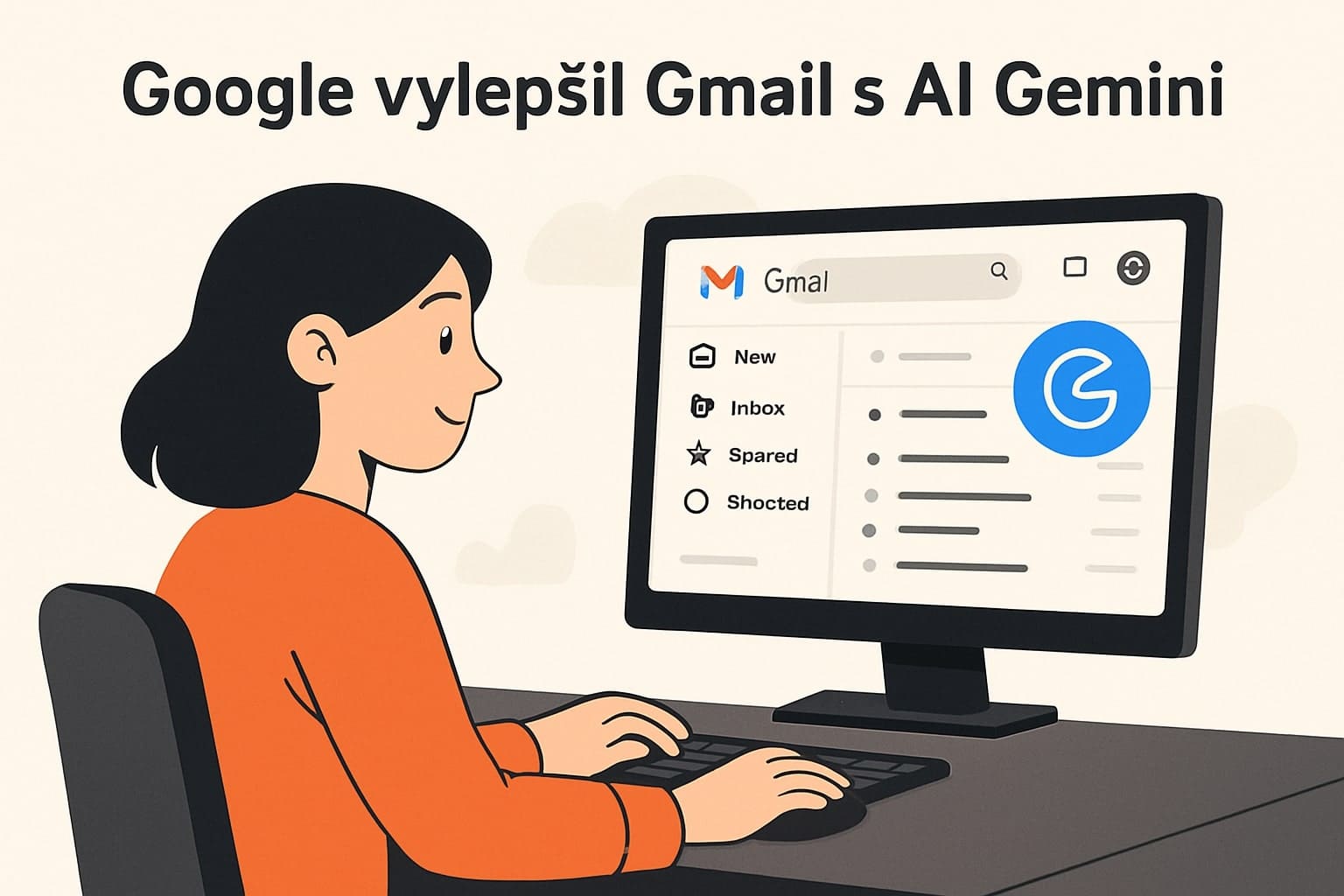
Google Improves Gmail: Gemini AI Can Now Add Events to Calendar on Its Own
Would you like an overview of the events coming up next week, or do you need to note down a new meeting? Then you’ll love Gmail’s new feature! Google has now integrated its artificial intelligence, Gemini, into Google Calendar. This gives you an assistant that will manage your meetings and help you keep track of what’s coming up!
How the Gemini Side Panel in Calendar Works
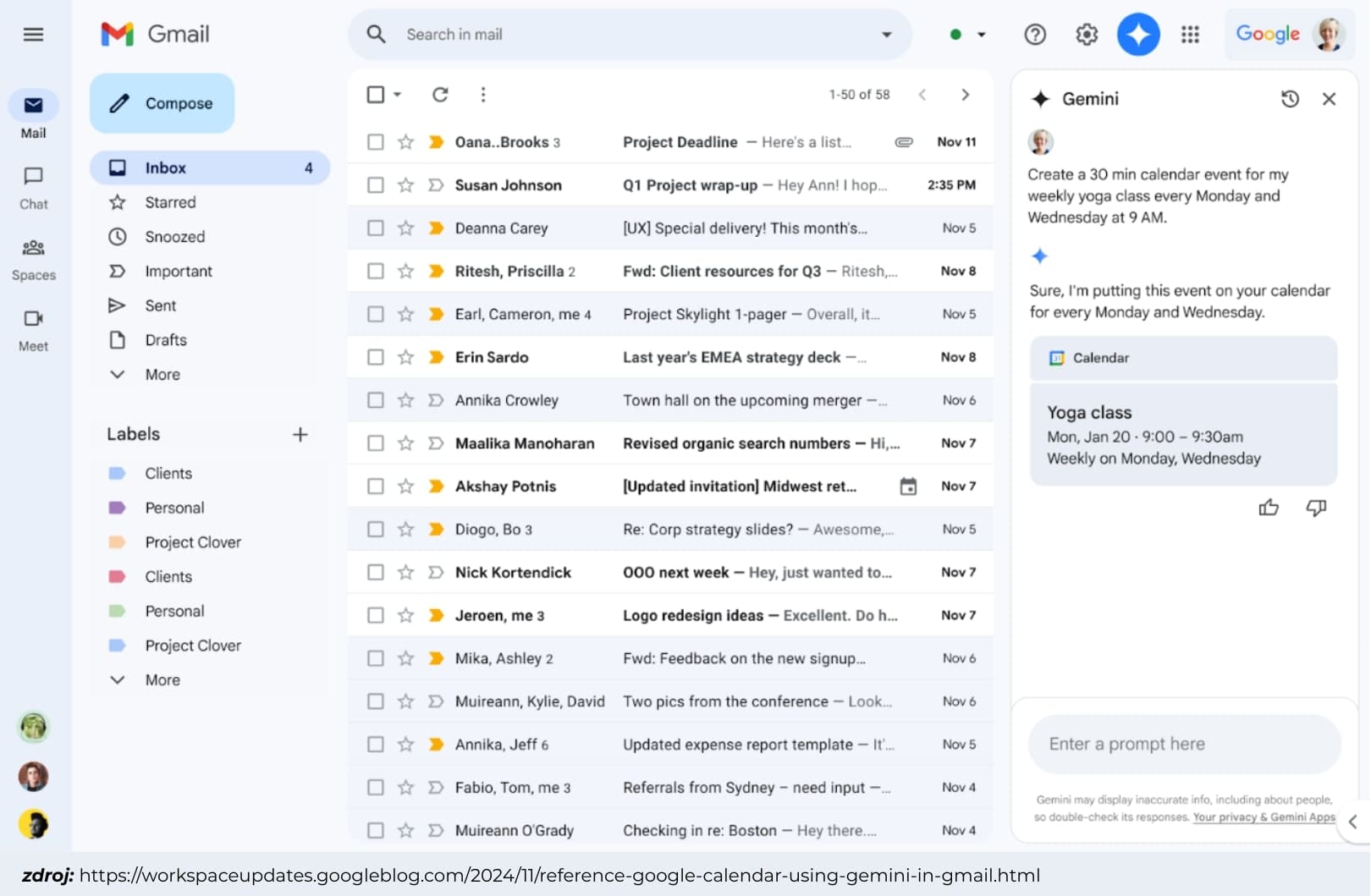
Gemini AI has been part of Gmail for some time. It helps you navigate emails more easily, can suggest replies to email threads, or search your inbox for specific information. Now, however, it has also made its way into Calendar itself. Gemini AI is available in the side panel of both Gmail and Google Calendar. In Calendar, this new feature is designed to make it easier for users to search for or create events. You will no longer have to enter them manually—just tell Gemini what’s coming up, and it will take care of adding the event. And what can it do? Almost anything a regular assistant can. It can add an event, check when your dentist appointment is, or find out how long tomorrow’s meeting will last. You can give it tasks simply like this:
- How many meetings do I have this week?
- When is my dentist appointment?
- Add a Pilates class every Monday from 6 to 7 p.m.
- How long will my Monday meeting last?
- Schedule lunch for noon tomorrow.
You can also communicate with Gemini completely naturally. Just ask a question or enter a task, and Gemini will take care of everything.
What Do We Still Have to Wait For?
However, Gemini’s capabilities in Gmail are still limited. The assistant cannot yet add guests to individual events, find mutually available times with your colleagues, or display attachments for individual events. Nevertheless, the new features will allow you to conveniently add meetings, search for specific events, and keep everything important clearly organized in one place.
Tip for Proper Use
Gemini is gradually becoming integrated throughout the entire Gmail ecosystem. So, if you want to make sure you are communicating directly with Calendar, simply add “@Calendar” to the beginning of your query or task. A specific Calendar command might then look like this: “@Calendar Create a meeting with Hana for Monday at 1:00 p.m.”
Who Is the New Feature Suitable and Available For?
This handy feature is suitable for Google Workplace users who use advanced versions of Gemini (Gemini Business, Gemini Education, Gemini Enterprise), as well as Google One AI Premium subscribers. If you are one of them, you can try the benefits of the smart calendar today! The rollout of the new feature began in mid-November last year. However, regular users need not despair. Google is expanding Gemini’s capabilities very quickly, so it is possible that this handy feature will eventually become part of more widely used versions of Gmail as well.